
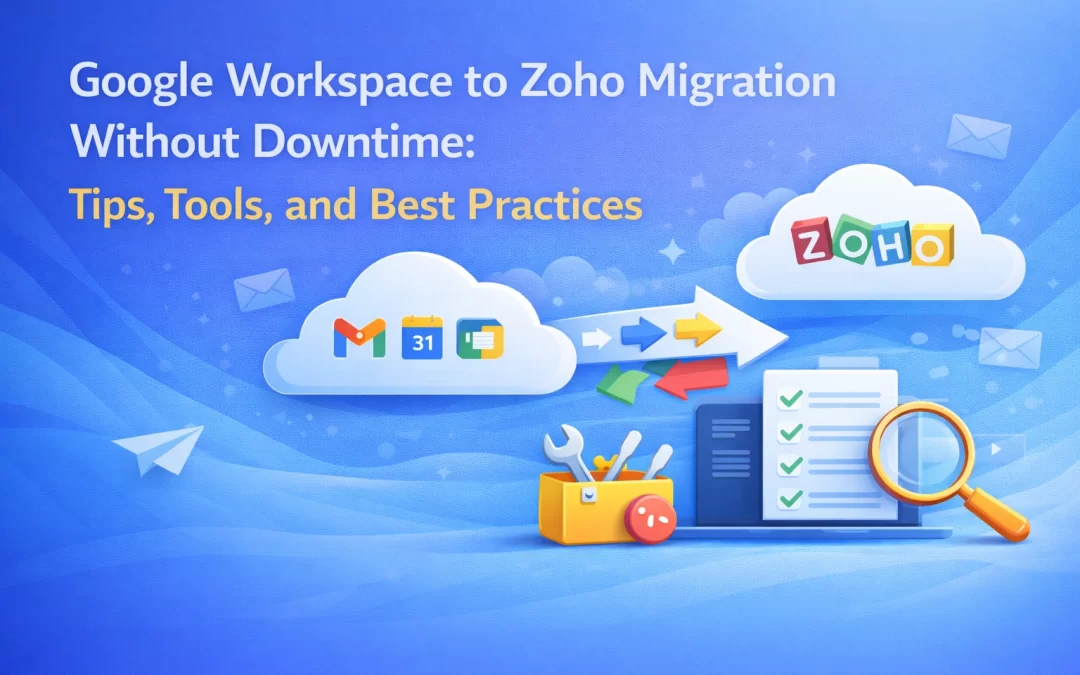
Migrating from Google Workspace to Zoho Mail can feel intimidating for businesses. You might worry about downtime, lost emails, or complicated setups. The good news is, with the right approach, a Google Workspace to Zoho migration can be seamless, fast, and stress-free.
In this guide, we’ll cover practical tips, recommended tools, and best practices to ensure your migration happens without any downtime, keeping your team productive and your emails safe. For businesses looking for professional help, WorkspaceKing specializes in making this transition smooth, affordable, and secure.
Why Businesses Move from Google Workspace to Zoho Mail
Businesses often switch for several reasons:
- Cost Efficiency: Zoho Mail plans are more budget-friendly without compromising essential features.
- Enhanced Collaboration: Zoho Workplace tools make teamwork simple and streamlined.
- Better Data Control: Zoho gives admins more control over email, privacy, and security.
- Ease of Migration: With the right tools and expert guidance, the process is smoother than you think.
Switching platforms doesn’t have to disrupt operations. With a structured approach and professional support like WorkspaceKing, your migration can be completed with zero downtime.
Tips for a Smooth Google Workspace to Zoho Migration
1. Plan Before You Migrate
A rushed migration is a recipe for mistakes. Start by:
- Listing all users and email accounts to migrate
- Backing up emails, contacts, and calendars
- Checking mailbox sizes—large accounts may need staged migration
Pro Tip: Document everything. This ensures nothing is overlooked during the process.
2. Prepare Your Zoho Environment
Before moving any emails:
- Set up your domain in Zoho Mail and verify ownership
- Create user accounts and assign proper roles
- Configure SPF, DKIM, and DMARC for email security
Professional services like WorkspaceKing can help set up everything correctly from the start, saving you headaches later.
3. Choose the Right Migration Method
Zoho provides multiple options for migration:
- IMAP Migration: Simple, reliable, and great for email-only transfers
- G Suite Migration Tool: Directly moves emails, contacts, and calendars
- Third-Party Tools: Ideal for large organizations or complex setups
For zero downtime, it’s best to use Zoho’s built-in tools or expert-managed migration. WorkspaceKing ensures emails continue syncing while your team works uninterrupted.
4. Migrate in Phases
For larger teams or companies with multiple mailboxes:
- Start with a test account to ensure the process works as expected
- Migrate small groups of users before moving everyone
- Monitor progress carefully to catch any sync issues early
5. Update DNS Records Strategically
After migration:
- Update MX records to point to Zoho Mail
- Verify SPF, DKIM, and DMARC for email deliverability
- Allow 24–48 hours for DNS changes to propagate
Pro Tip: Don’t delete Google Workspace accounts immediately. Keep them as a backup until you’re confident everything works on Zoho.
6. Verify and Train Your Team
After migration, it’s critical to:
- Test email sending/receiving for all accounts
- Check that contacts and calendars are fully synced
- Train your team on Zoho Mail interface and features
WorkspaceKing can provide post-migration support and team training, ensuring no productivity loss.
Recommended Tools for a Smooth Migration
- Zoho’s G Suite Migration Tool: Reliable and zero-downtime migration for emails, contacts, and calendars
- IMAP Migration Tool: Best for simple email-only migrations
- Third-Party Tools (if needed): For large-scale or complex migrations
- WorkspaceKing Services: Full-service migration with expert monitoring and support
Using the right tools and experts ensures a smooth process, avoids email loss, and prevents downtime.
Best Practices for Successful Migration
- Backup Everything: Always export important emails, contacts, and calendars before starting.
- Communicate With Your Team: Keep everyone informed about migration timelines and expectations.
- Migrate During Off-Peak Hours: Minimizes impact on daily operations.
- Monitor Migration Progress: Track status and resolve errors quickly.
- Validate Post-Migration Data: Ensure emails, contacts, and calendars are complete and accurate.
Following these best practices guarantees a smooth transition and peace of mind.
Common Challenges and How to Overcome Them
| Challenge | Solution |
|---|---|
| Emails not migrating | Double-check credentials and IMAP settings |
| Missing contacts | Re-export from Google Workspace and re-import to Zoho |
| Calendar sync issues | Use Zoho calendar sync tool or re-import ICS files |
| Large mailbox delays | Break migration into smaller batches |
Professional services like WorkspaceKing are especially helpful for troubleshooting these issues quickly.
Conclusion
A Google Workspace to Zoho migration without downtime is absolutely achievable with proper planning, the right tools, and best practices. Whether you’re a small business or a large organization, following the steps above ensures continuity, security, and productivity.
If you want a stress-free, fast, and affordable migration, WorkspaceKing is your trusted partner. They handle everything from pre-migration setup to post-migration training, letting you focus on your business while emails move seamlessly in the background.