
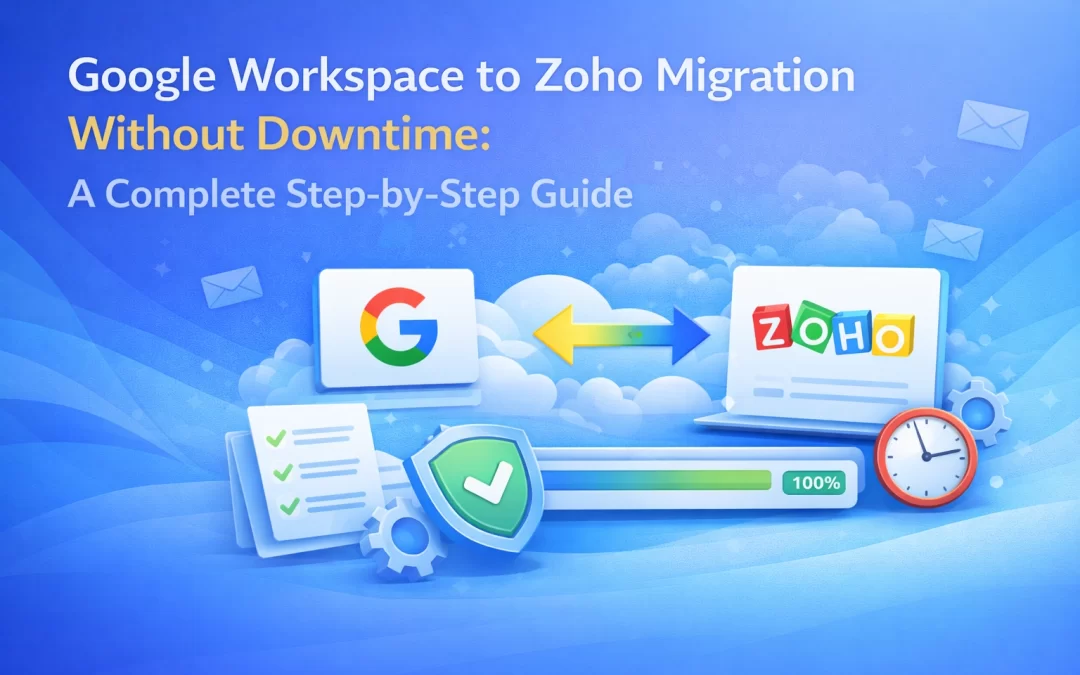
Migrating your business emails from Google Workspace to Zoho Mail may seem daunting, but with proper planning, it can be seamless and completely downtime-free. This guide will walk you through every step of the Google Workspace to Zoho migration, ensuring your emails, contacts, and calendars transfer safely.
For businesses looking for professional help, WorkspaceKing makes the Google Workspace to Zoho migration process easy, fast, and affordable.
Why Consider Google Workspace to Zoho Migration?
Many businesses consider switching from Google Workspace to Zoho Mail for reasons such as:
- Cost Savings: Zoho Mail offers affordable plans without compromising features.
- Advanced Collaboration: Zoho Workplace provides tools to enhance teamwork.
- Better Data Control: More privacy and admin control over email accounts.
Switching platforms doesn’t have to disrupt your workflow. With the right approach, your team can continue working while the migration happens in the background. WorkspaceKing specializes in making this transition smooth and hassle-free.
Pre-Migration Checklist
Before starting your Google Workspace to Zoho migration, ensure you:
- Backup All Data: Export emails, contacts, and calendars from Google Workspace.
- Verify Domain Ownership: Make sure your domain is added and verified in Zoho Mail.
- Prepare User Accounts: Create Zoho Mail accounts for all users.
- Check Email Volume: Large mailboxes may need phased migration.
If you want a hassle-free migration, WorkspaceKing provides end-to-end support, including backup and verification.
Step 1: Set Up Zoho Mail
- Log in to Zoho Mail Admin Console.
- Add your domain and verify ownership via TXT, CNAME, or MX records.
- Configure user accounts and assign roles.
Step 2: Choose a Migration Method
Zoho offers multiple migration options:
- IMAP Migration: Ideal for emails only; requires user credentials.
- G Suite Migration Tool: Migrates emails, contacts, and calendars directly.
- Third-Party Migration Tools: Useful for large organizations with complex setups.
For zero downtime, tools provided by WorkspaceKing ensure all emails sync in the background while your team continues working.
Step 3: Migrating Emails
- Go to Zoho Mail Admin Console → Migration → Start Migration.
- Enter Google Workspace admin credentials.
- Select mailboxes to migrate.
- Start migration. Emails continue to sync while Google Workspace remains active.
Step 4: Migrating Contacts and Calendars
- Export contacts and calendars from Google Workspace in CSV or ICS format.
- Import them into Zoho Mail via Admin Console or user accounts.
- Zoho supports direct calendar sync from Google Workspace until final cutover.
WorkspaceKing can automate these steps, saving you time and avoiding errors.
Step 5: Update DNS Settings
- Once migration is complete, update MX records to point to Zoho Mail.
- Verify SPF, DKIM, and DMARC records to ensure email deliverability.
- Allow 24–48 hours for DNS propagation.
Step 6: Post-Migration Checklist
- Test email sending and receiving for all users.
- Verify that contacts and calendars synced correctly.
- Train employees on Zoho Mail interface.
- Keep Google Workspace accessible for a short period as a backup.
Common Issues & How to Solve Them
| Issue | Solution |
|---|---|
| Emails not migrating | Check IMAP settings and credentials |
| Missing contacts | Re-import CSV file |
| Calendar sync errors | Use Zoho calendar sync or re-import ICS |
| Large mailbox delays | Migrate in batches |
Conclusion
Migrating from Google Workspace to Zoho doesn’t have to be stressful. By following this step-by-step guide, you can perform a Google Workspace to Zoho migration without downtime, ensuring business continuity.
For a professional, fast, and affordable migration, WorkspaceKing is your trusted partner.